Games List
This is the list of all games, added to your system.
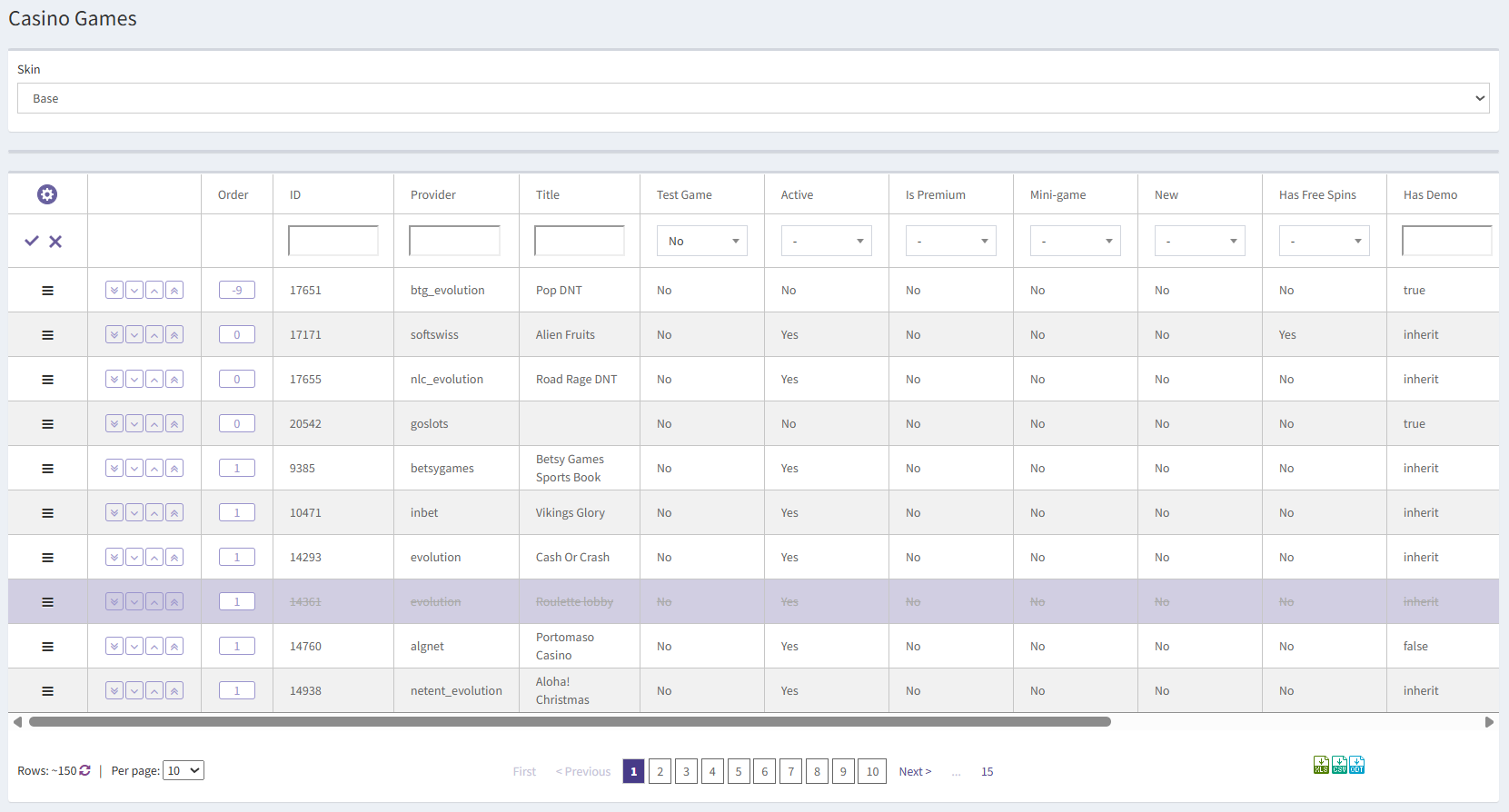
At the top of the page, you can see Skin drop-down list. Use it to display or edit the games configuration in a particular skin.
The search fields and drop-down lists on top of every column can be used to navigate through the list, and you can use the gear-shaped button to choose, which columns should be displayed on the page:
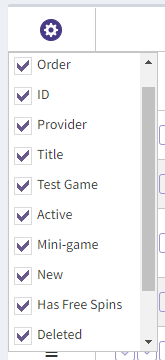
The following information is presented in the columns:
- Order – the order of games in the client application. If you want to change the place of a particular game in the list, you need to change the order number and move it with the arrow buttons to the new position. The smaller the number – the higher is the game. Example: There are two games with order = 1, and you would like to place game1 above the game2. In this case, you need to set the order of the game1 to 0 and move it to be higher than game2 in the list.
- ID – game ID.
- Provider – the provider of the game.
- Title – the title of the game (visible in the client application).
- Test Game (Yes/No) – shows if it is a test game. The checkbox is active by default on stage/test servers.
- Active – shows if the game is active in the client application.
- Is Premium – shows if the game is marked as premium by the provider.
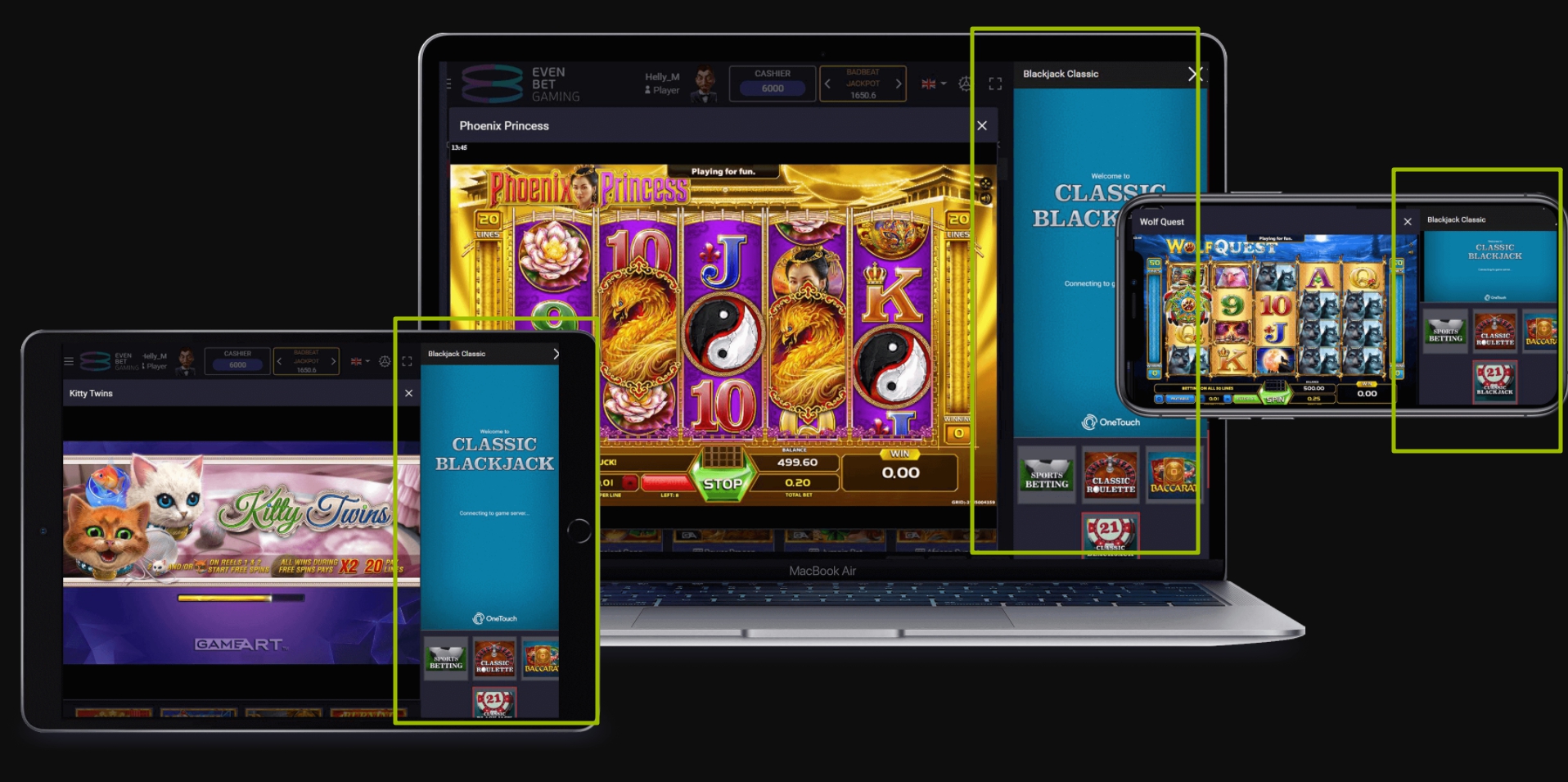
- Mini-game – shows if it is a mini-game. The mini-games can be opened in the right part of the screen on any page of the client application. Thus, the user can play them, for example, while waiting for his turn in poker. At the moment, the mini-games are provided by OneTouch only.
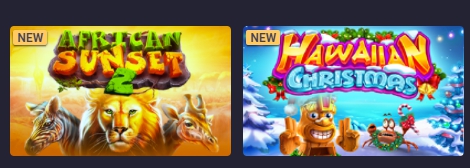
- New – if marked, the game will have New label in the app for 30 days from the date they are added in Backoffice:
- Has Free Spins – show if freespins are available for this game.
- Has Demo – shows if the game has demo mode.
- Deleted (Yes/No) – shows if the game was deleted.
- Devices – shows the devices on which the game is available (Desktop, Mobile).
- Categories – shows to which categories the game belongs.
- Tags – shows if there are tags assigned to the game.
The list of the games can be downloaded as .XLS, .CSV or .ODT file with the buttons 
For each game, two actions are available:
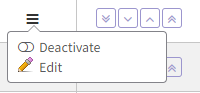
- Deactivate – deactivates the game, and it disappears from the client application. The game can also always be activated again here.
- Edit – Opens Update Game form.
- View – Opens Update Game form in read-only mode.
Update Game
This page is used to modify game settings.
The game title can be updated, localizations added, and the New label applied if needed. It's also possible to disable the game for specific devices and assign tags, which can later be used to group casino games.
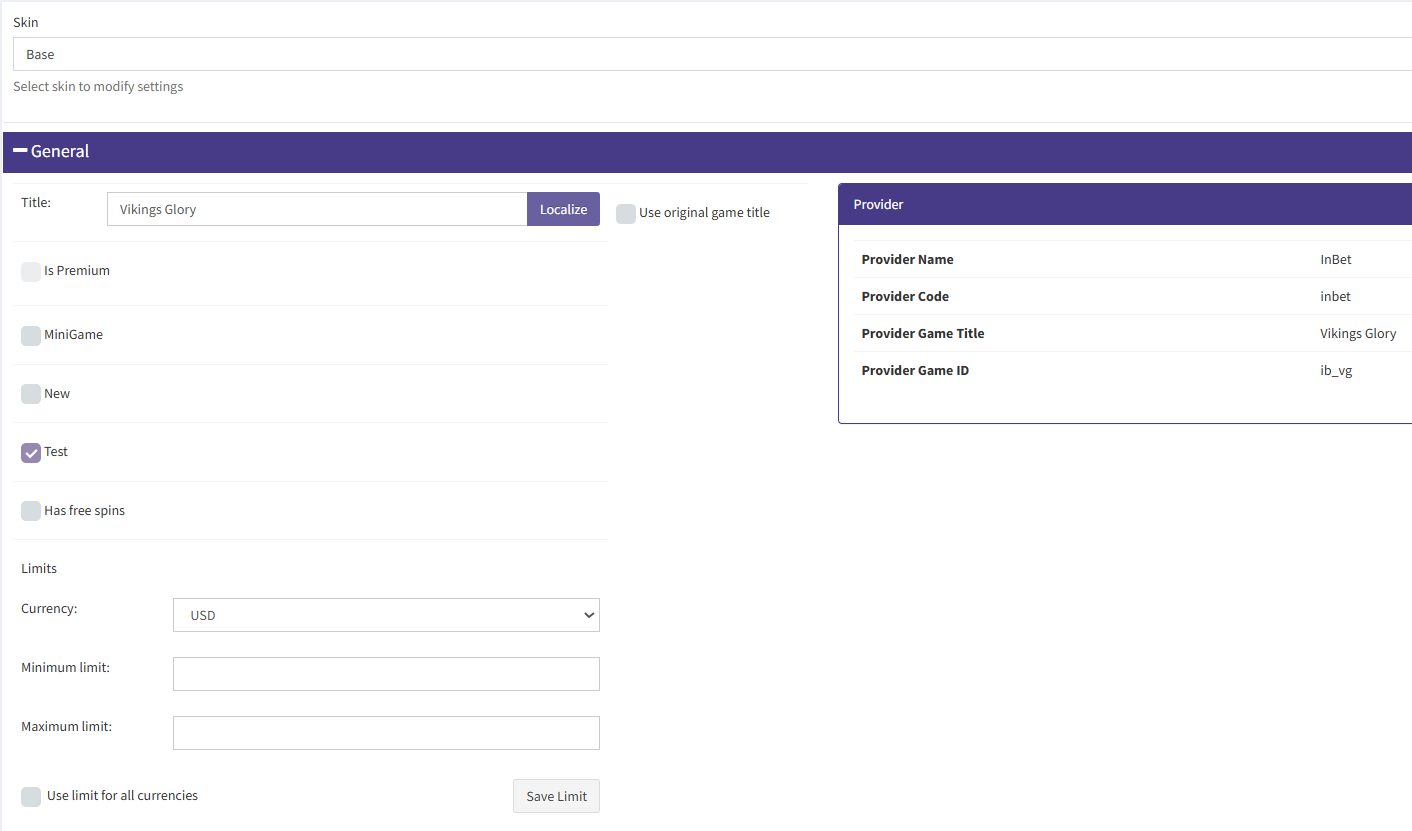
The following fields are available when editing a casino game:
- Skin – the skin where these game settings will be applied.
- Title – the game's name shown to players.
- Use original game title – whether to use the original title provided by the game provider.
- Is Premium – shows if the game is marked as premium by the provider (not editable).
- MiniGame – indicates whether the game can be launched as a mini-game.
- New – whether the game is marked with the New label. Such games are displayed in the client application with the New label for 30 days from the date they are added in Backoffice.
- Test – not used.
- Has free spins – whether free spins are available for this game.
- Limits – bet limits for this game (requires the Requires bet limit setting to be enabled in provider settings).
- Currency – the currency the limits apply to.
- Minimum limit – the minimum allowed bet.
- Maximum limit – the maximum allowed bet.
- Use limit for all currencies – apply the same limit to all currencies (with conversion).
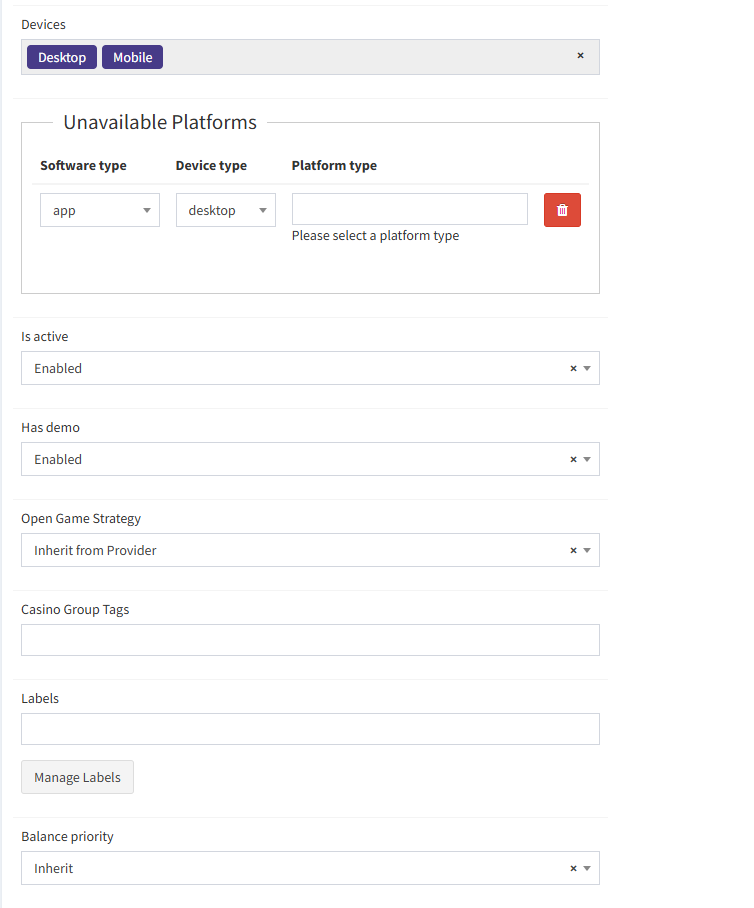
- Devices – devices on which the game is available.
- Unavailable Platforms – platforms on which the game is restricted:
- Software type – browser or app.
- Device type – desktop or mobile.
- Platform type – all, Windows, Mac, HTML.
- Is active – whether the game is active: Enabled, Disabled, or Inherit (the game's status is inherited following a priority chain: current skin → game → provider's skin → provider. The system checks each level until it finds an explicit status (enabled or disabled), which will be applied.).
- Has demo – whether the demo version is available: Provider's setting, Enabled, or Disabled.
- Open Game Strategy – defines how the game opens: Inherit from provider, Detect, IFrame, or Redirect.
- Casino Group Tags – tags used to group games logically or thematically.
- Labels – visual labels applied to the game.
- Manage Labels – opens the label management page.
- Balance priority – the priority of which player balance to use for this game.
The Balance priority defines balance priority for the casino game. There are two types of balances in the Evenbet system: Money balance and Real balance. In this drop-down list, you can select, the money from which balance should be used in the casino game. Possible values:
- Inherit – the value is defined by the position of the Configuration setting GlobalSpendingMoneyPriority.
- Money Balance Only – the money is taken only from the player's real balance for the bet and the winnings are returned to the real balance;
- Bonus Balance Only – the money is taken only from the player's bonus balance for the bet and the winnings are returned to the bonus balance;
- Money Balance First – the money is taken first from the player's real balance for the bet, and if there is not enough money, then the rest is taken from the bonus balance. The winnings are returned to the bonus balance, but not more than what was initially taken from the bonus balance. The rest goes to the real balance.
- Bonus Balance First – the money is taken first from the player's bonus balance for the bet, and if there is not enough money, then the rest is taken from the real money balance. The winnings are returned to the real balance but not more than what was initially taken. The rest is added to the bonus balance.
- Money Balance First Proportional Return – the money is taken first from the player's real balance for the bet, and if there is not enough money, then the rest is taken from the bonus balance. The winnings are returned to the balances proportionally to what was used for the bet.
- Bonus Balance First Proportional Return – the money is taken first from the player's bonus balance for the bet, and if there is not enough money, then the rest is taken from the money balance. The winnings are returned to the balances proportionally to what was used for the bet.
- Bonus Balance First Return Surplus to Money Balance – the money is taken only from the player's bonus balance at the seating/for the bet and returned to the bonus balance after leaving the table/when the player receives winnings from the bet but not more than what was initially taken. The surplus (if any) is credited to the real balance.
- Bonus Balance Only Return Surplus To Money Balance – the money is taken first from the player's bonus balance at the seating/for the bet, and if there is not enough money, then the rest is taken from the real money balance. When the user leaves the table/receives winnings from the bet, the money is returned to the bonus balance, but not more than what was initially taken from the bonus balance. The rest goes to the real balance.
- Money Balance First until equal bonus balance then fifty to fifty – the money is first taken from the player's real balance at the seating/placing a bet, and if the real balance becomes equal to the player's bonus balance during this process, the remaining amount is split 50/50 between the real balance and the bonus balance. After leaving the table/when the player receives winnings from the bet, the bonus balance is replenished first, but not more than what was initially taken from it; the rest goes to the real balance. Hence, if the player makes a profit, it always goes to the real balance.
Note: The game balance priority has a priority over the user, provider, casino and system balance priority.
If you scroll down the page, you will be able to set up the game's categories and change its image in the client application:
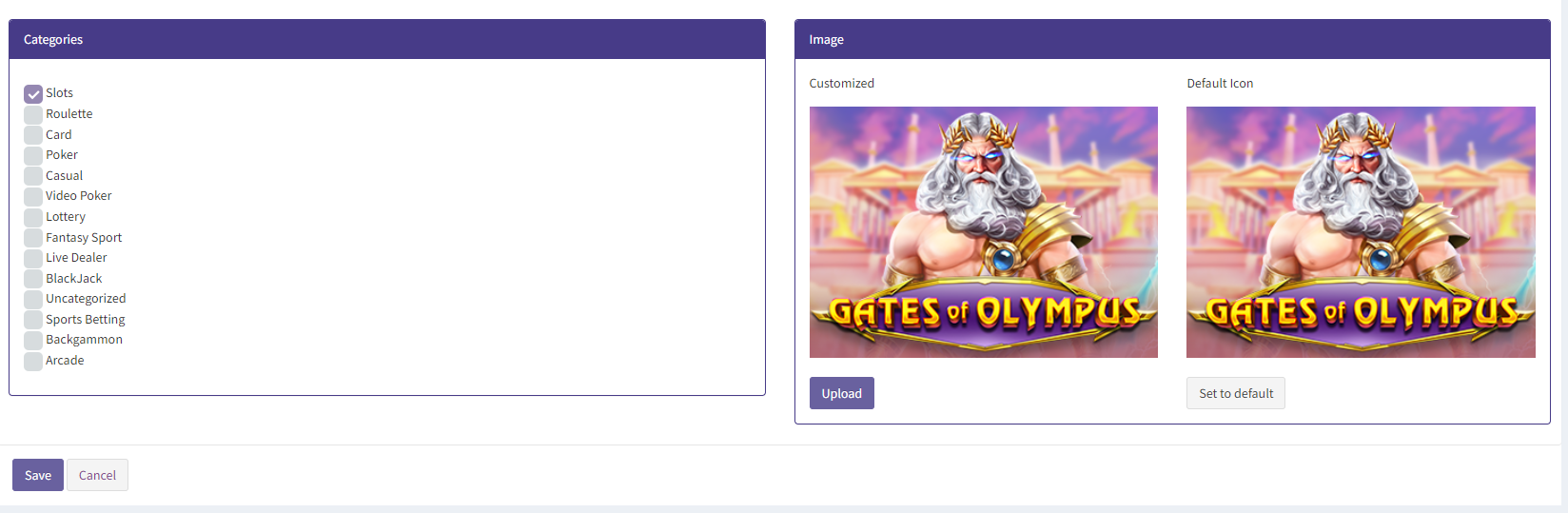
- Categories – categories the game belongs to (e.g., Slots, Live Dealer).
- Image – the cover image displayed for the game.
Additional Information about the Games
- Each currency has unique default betting limits. If you want to change the betting limits for a game, please, send the new limits to your EvenBet casino manager. The casino manager will contact the provider's limit / risk manager to discuss the requirement. The new limits can either be approved or declined depending on the possible risks for the provider.
- The live dealer casino providers (Ezugi, Evolution, etc.) support the dynamic refresh of tables in the lobby. This means that the number of tables in the lobby can be different depending on the work hours of a particular studio/dealer.
- Some of the games may be disabled (deleted by the provider) or be present on the provider's website but not yet integrated in the EvenBet system.
- Some providers have premium content that can be added on request. The activation of premium games requires additional fees. You can ask your sales manager to provide you with the list of premium games.